
As I started my journey of a programmer, I’ve learned that knowing the tools that enhance my working environment is huge.
I’m going to share with you guys some of the tools that I found to be helpful. Tools that I mention below helped and continue to help my day to day programming life in forms of saving time (probably relevant to most of you), or prevention of awkward/unergonomic motions (big one for me).
As a person developing palm pain from typing/clicking >;/ I found that using the trackpad/mouse to click and drag things often puts my hand in an unnatural motion and triggers soreness. You may think I’m kidding, or soft, or super anal – that things like mouse clicks and trackpads matter. I wish I was kidding, they didn’t until they did. Those drags/clicks/typings add up. Don’t become like me and prevent it from get go.
1. BetterSnapTool
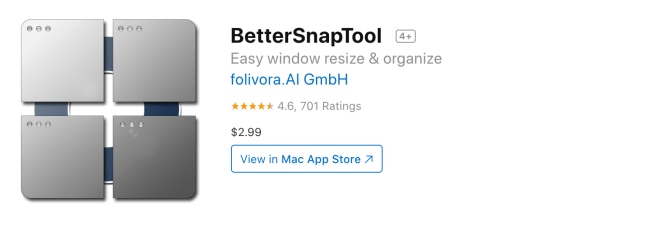
I use this for one thing, and one thing only: Resize/position my screens.
You can do this by dragging or setting keyboard shortcuts to your liking. I use the latter option because I don’t like mouse (see above), and I’m a ~fancy~ programmer(◕‿◕✿)
This may seem small to you. But I can’t count the number of times I call over my coworker/get called over during middle of work, and had to share screens. That’s normal. What’s also normal is waiting next 47 years while the attention span goes elsewhere because you/your coworker have/has to
- move irrelevant shit out of the screen
- need 2 or more screens of info needs to be seen side by side for better understanding, but they need to be dragged into perfect position
- need to see 3 or more screens to be shown before you retire
This app solves that. Below is how I have my keys set up because they made sense to me. If you have more intuitive settings please share with me 🙂
- ctrl optn cmd + m = maximize screen
- ctrl optn cmd + left/right key = screen to left or right half
- ctrl optn cmd + up/down key = screen to upper/lower half
- ctrl optn cmd + n = move to next screen
- ctrl optn cmd + b = maximize on next screen (you could just press m instead really)
- ctrl optn cmd + u/i/j/k = screen to upper left/right, lower left/right
- ctrl optn cmn + , or + . or + / = left/middle/right third
As a person that dreads paying for apps, this was absolutely worth $2.99. Buy it. Use it. It’s cheaper than your morning coffee at sbux 😉
2. SourceTree
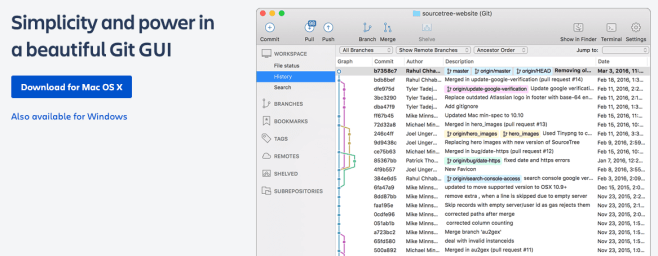
This may seem counter-intuitive because I’m a big advocate of not having to use mouse and what not, but I’m a bigger advocate for efficiency. Sometimes you just don’t want to type a million terminal commands. Simple keyboard short cuts with GUI shows you what you will do/have done.
git init

git status

git add . (if you have added all)

git commit -m "comments"

git push
Above alone are my typical git commands just to ship the code you just wrote. This is with only ONE master branch with 0 errors, reverting pushed commits, and merge conflicts (assuming that you are in the correct folder already)
Am I going to be this lucky ever in real life working with many developers simultaneously? NO
This might be an extreme case but below is my forked repository of WordPress app (that I haven’t touched in a while.. as you can see) .
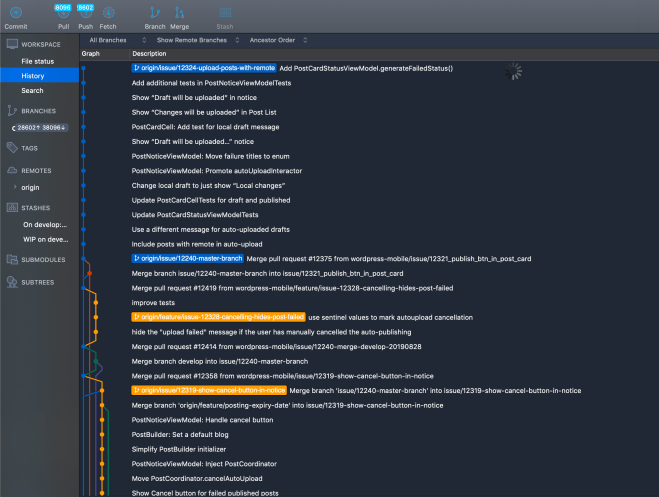
I had over 3500 commits, 38,000 pulls, and 28,000 pushes loaded up to keep it updated with the current version. Imagine going through this one by one in terminal. HAHAH
(I recommend using this app once you’ve gotten comfortable with knowing the actual terminal commands and navigating through terminal in general for git related stuff, because it’s a core skill of a programmer).
3. Be Focused – Focus Timer

Formerly pomodoro timer, this one keeps a customizable timer that you can set up on your mac so that you know how to keep track of time. Why do I need a timer? Why don’t I just look up and see what time it is?
Working on projects, I often get stuck on a particular problem and end up spending hours rabbit-holing for a solution. Without looking up at the clock to realize that it’s been 3 hours, and I have bigger problems left to solve to finish the project on time.
This app’s unnecessary if you have hours to spend (or are a genius at time management) but in the case that you don’t/aren’t. It’s great to set up a timer that tells you it’s time to move on. Very underrated.
4. Karabiner
Next two are mainly just key bindings.
Karabiner makes it so that you can customize your key settings to mimic mouse actions and MUCH MORE. As you can see you can get real complex with it, but I’m not that nerdy yet.

I mainly use it to navigate inside chrome (often each with its histories) open
hold down j/k = scroll up and down

shift + h/l = move back/forward
(while you have that tab selected & browsing history present)

shift j/k = previous/next tab
5. Chrome shortcuts
Since we are speaking about shortcuts
- cmd + t = new tab
- cmd + w = close tab
- cmd shft + t = re-open that tab that you closed (doesn’t work on incognito)
- cmd shft + n = open new page in incognito
- cmd + m = minimize
- cmd + l = open location (in human english: directly type stuff in the search URL)
- cmd + 1~9 = navigate to that specific tab
- (command + 9 goes to the last tab if you have more than 9 tabs)
- cmd + optn + left/right also works for navigation
I’m sure there are other apps that are just as useful, similar, or that I may be able to shorten a lot of other app usage via karabiner. I’ll figure them out..eventually.
 joseph park | zozep